
Create a SadConsole project with the templates
Learn how to create a new project with the SadConsole templates hosted on NuGet. This template creates a .NET project. The .NET SDK includes easy ways to create a project, add references, and build/compile, with or without an editor.
If you’re using Visual Studio, follow these steps until instructed to switch to Visual Studio.
Prerequisites
Section titled “Prerequisites”-
Download and install the .NET 8.0 (or later) SDK.
To see what versions you have, run
dotnet --info. If this command fails, your install may have failed, you don’t have .NET, or it’s not added to your terminal path variable.
Create your working folder
Section titled “Create your working folder”After you have a .NET SDK installed, open up a terminal. If you’re unsure how to do that, search the internet for a tutorial.
Once you have a terminal open, navigate to the folder where you’ll keep your code. This tutorial assumes you’re in an empty folder waiting to input commands. For example, if you already have a coding folder where you store your projects, navigate there in your terminal—something like C:\Code\Fun—and wait to input the next series of commands from this article.
Install the templates
Section titled “Install the templates”Next, install the SadConsole templates:
dotnet new install SadConsole.TemplatesWhen this command runs, it lists every template installed. You can run a command to list the SadConsole related templates:
dotnet new list sadconsoleYou should see output similar to the following:
These templates matched your input: 'sadconsole'
Template Name               Short Name               Language  Tags--------------------------  -----------------------  --------  -------------------------------------ColoredGlyph Type           sadconsole.coloredglyph  [C#]      Console/Roguelike/SadConsoleSadConsole Demo             sadconsole.demo          [C#]      Console/Roguelike/SadConsole/MonoGameSadConsole Game (MonoGame)  sadconsole.mg            [C#]      Console/Roguelike/SadConsole/MonoGameSadConsole Game (SFML)      sadconsole.sfml          [C#]      Console/Roguelike/SadConsole/SFML
The SadConsole Game (MonoGame) template creates a SadConsole game that uses MonoGame and the SadConsole Game (SFML) template creates a game that uses SFML. MonoGame and SFML are the backend renderers for SadConsole. In general, the code you use for SadConsole doesn’t care which rendering system you use. However, as your game progresses, which renderer you choose is very important. Use the MonoGame renderer. It has the following benefits:
- Easier cross-platform targeting.
- Supports 3D rendering: models, scenes, etc.
- Built for .NET coding
SFML is cross-platform, but it takes more work on your side to get that working.
Create a project via CLI
Section titled “Create a project via CLI”Your terminal should be in the game directory you created at the start of this article. Create your project using the dotnet new command:
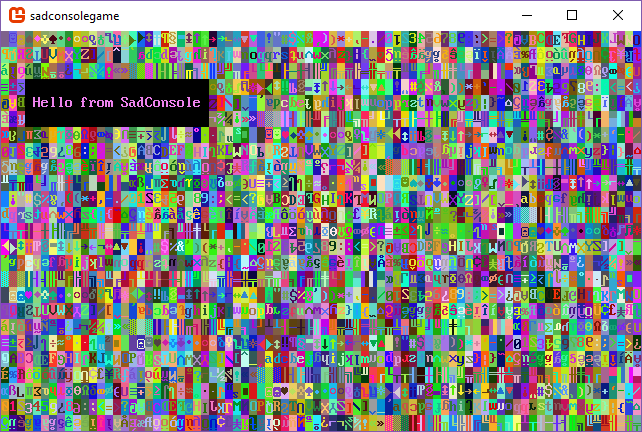
dotnet new sadconsole.mg -n SadConsoleGameThis command generates a small example game you can customize. Run the game with dotnet run from your terminal, and you’ll see the following:
Use your favorite IDE or editor to open your newly created project, something like Visual Studio or Visual Studio Code.
Next steps
Section titled “Next steps”Now that you have the project created and working, check out the Get Started tutorial series.