
Create a SadConsole game: Part 1 - Drawing
Welcome to the start of the Getting Started with SadConsole tutorial series. This series guides you on how to use the basic parts of SadConsole from the perspective of a new coder.
Prerequisites
Section titled “Prerequisites”To start this tutorial you’ll have to create a SadConsole project. Follow the Create a SadConsole project with the templates guide, which works for Windows, Linux, and macOS.
Sync your code to mine
Section titled “Sync your code to mine”Regardless of whether you used the CLI templates or Visual Studio templates, you’ll have to change some things for this tutorial series.
-
Update the project file. Open your project file, it’s probably named MyGame.csproj or SadConsoleGame.csproj. Replace the content with the following snippet:
<Project Sdk="Microsoft.NET.Sdk"><PropertyGroup><OutputType>WinExe</OutputType><TargetFramework>net8.0</TargetFramework><ImplicitUsings>enable</ImplicitUsings><Nullable>enable</Nullable><RootNamespace>Temp</RootNamespace><ApplicationManifest>app.manifest</ApplicationManifest></PropertyGroup><ItemGroup><Using Include="SadConsole" /><Using Include="SadRogue.Primitives" /><Using Include="SadConsole.Console" Alias="Console" /></ItemGroup><ItemGroup><PackageReference Include="MonoGame.Framework.DesktopGL" Version="3.8.3" /><PackageReference Include="SadConsole.Host.MonoGame" Version="10.6.0" /><PackageReference Include="SadConsole.Extended" Version="10.6.0" /></ItemGroup></Project>If you get a compiler error related to
<ApplicationManifest>, you can remove that line. This is a file generated by the MonoGame template, and it helps with 4k monitors.Notice the
<Using>elements. These may be new to you if you’re already familiar with C#. These statements automatically import the associated namespace to every code file in your project. This means that you can omit lines likeusing SadConsole;in all of your code files. This also maps theConsoletype toSadConsole.Consoleso thatSystem.Consoleis not confused withSadConsole.Console. -
Delete the RootScreen.cs file generated by the template.
-
Open Program.cs and replace the code with the following:
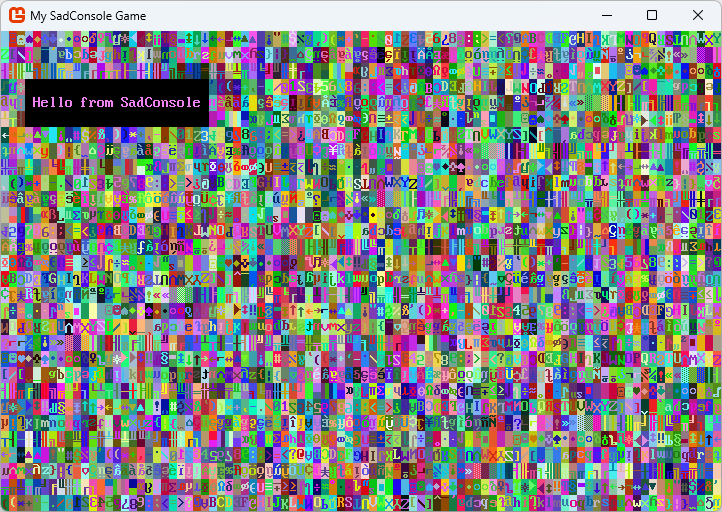
using SadConsole.Configuration;Settings.WindowTitle = "My SadConsole Game";Builder.GetBuilder().SetWindowSizeInCells(90, 30).ConfigureFonts(true).UseDefaultConsole().OnStart(Startup).Run();static void Startup(object? sender, GameHost host){Game.Instance.StartingConsole!.FillWithRandomGarbage(SadConsole.Game.Instance.StartingConsole!.Font);Game.Instance.StartingConsole.Fill(new Rectangle(3, 3, 23, 3), Color.Violet, Color.Black, 0, Mirror.None);Game.Instance.StartingConsole.Print(4, 4, "Hello from SadConsole");}
You should be able to run this code and see the following output. You can run your program by pressing the F5 key. If you’re using the terminal, run dotnet run:
Explore the sample code
Section titled “Explore the sample code”SadConsole uses the static void Startup(object? sender, GameHost host) method as an event handler. When the game starts, SadConsole calls this method and runs any code you provide. Use this hook to add extra initialization code for your game, such as creating startup variables and objects. For now, this method gives you a simple place to explore and play with SadConsole without creating real game code.
Let’s explore the Startup method:
static void Startup(object? sender, GameHost host){ Game.Instance.StartingConsole!.FillWithRandomGarbage(SadConsole.Game.Instance.StartingConsole!.Font); Game.Instance.StartingConsole.Fill(new Rectangle(3, 3, 23, 3), Color.Violet, Color.Black, 0, Mirror.None); Game.Instance.StartingConsole.Print(4, 4, "Hello from SadConsole");}-
This code accesses the default starting console. You provided the size of the starting console when you created the SadConsole game. The first line fills the console with some garbage, that is, random characters and colors:
Game.Instance.StartingConsole!.FillWithRandomGarbage(SadConsole.Game.Instance.StartingConsole!.Font);Did you notice the
!in that line of code? BecauseStartingConsolecan be null, you need to tell C# that you’re aware of this condition and certain it isn’t null, which is what the!(null-forgiving) operator does in this case. This isn’t required, but if your code editor warns you thatStartingConsolemight be null, the operator disables that warning. You know it’s not null because the startup code called.UseDefaultConsole()which creates a default console for you to use. -
The next line fills a rectangle region with some color to create a box.
Game.Instance.StartingConsole.Fill(new Rectangle(3, 3, 23, 3), Color.Violet, Color.Black, 0, Mirror.None);The parameters are as follows:
-
Region to fill defined by X, Y, Width, Height:
new Rectangle(3, 3, 23, 3) -
The foreground color to use for each region character:
Color.Violet -
The background color to use for each region character:
Color.Black -
The glyph character to fill,
0represents an empty character. -
The mirror setting for the glyph.
You can mirror them horizontally or vertically. Because the
FillWithRandomGarbagerandomizes the mirror, this needs to be cleared for the area.
-
-
The last line prints some text at position 4, 4. This position is inside the box. Because the
Printstatement doesn’t specify any color settings, the text has the same foreground and background as cells in the surface it replaces. The colors were set by theFillmethod, which had a foreground of Violet and a background of Black.Game.Instance.StartingConsole.Print(4, 4, "Hello from SadConsole");
Play around with these methods. Try filling in some other boxes, changing the colors, and printing different strings to different areas. You can remove the FillWithRandomGarbage line if you would like a cleaner area while playing around.
Draw more
Section titled “Draw more”Add more code to the Startup method to draw more on the screen. First, simplify access to Game.Instance.StartingConsole by assigning it to a variable named startingConsole. Copy and paste this code over your existing code to stay in sync with the article:
static void Startup(object? sender, GameHost host){    Console startingConsole = Game.Instance.StartingConsole!;
    startingConsole.FillWithRandomGarbage(startingConsole.Font);    startingConsole.Fill(new Rectangle(3, 3, 23, 3), Color.Violet, Color.Black, 0, Mirror.None);    startingConsole.Print(4, 4, "Hello from SadConsole");}
Shapes
Section titled “Shapes”Previously, you used Fill to fill a rectangular region. With SadConsole, you can draw shapes such as a rectangle or an ellipse. This works like Fill but gives you more control over the drawing. For example, you can apply a border to the box you draw—something Fill can’t do.
After the Print line that prints “Hello from SadConsole”, add the following to draw a box around it:
startingConsole.DrawBox(new Rectangle(3, 3, 23, 3), ShapeParameters.CreateBorder(new ColoredGlyph(Color.Violet, Color.Black, 176)));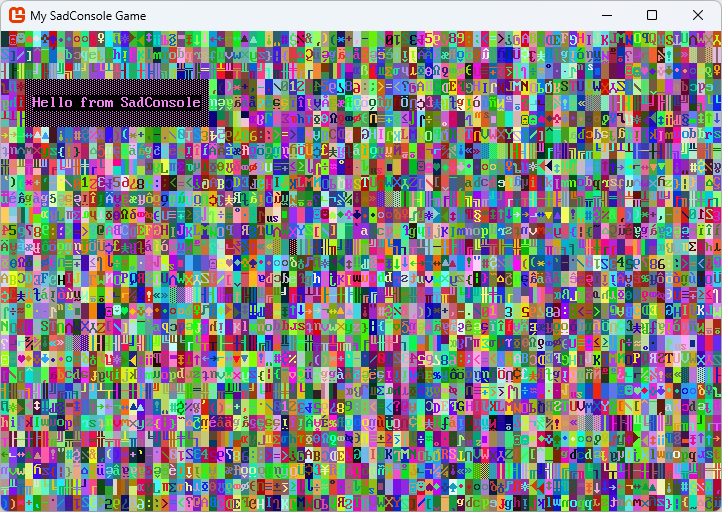
The DrawBox method takes a region and a ShapeParameters object. The ShapeParameters object defines the style in which to create a shape, and in this case, the box. The code uses it in a simple mode, just providing a ColoredGlyph for the border. A ColoredGlyph type represents a foreground color, a background color, and a glyph character—all in a single type. This glyph is what gets drawn as the border of the box. A ColoredGlyph also specifies the fill of the shape, but skip that for now.
The DrawBox method breaks down into the following parameters:
- Rectangle: This is the region to draw box in.
- Shape Parameters: The style of border and fill settings that are applied to the box.
With DrawBox you can also specify that you want to use a line style for the box instead of the glyph character provided.
startingConsole.DrawBox(new Rectangle(3, 3, 23, 3), ShapeParameters.CreateStyledBox(ICellSurface.ConnectedLineThin, new ColoredGlyph(Color.Violet, Color.Black)));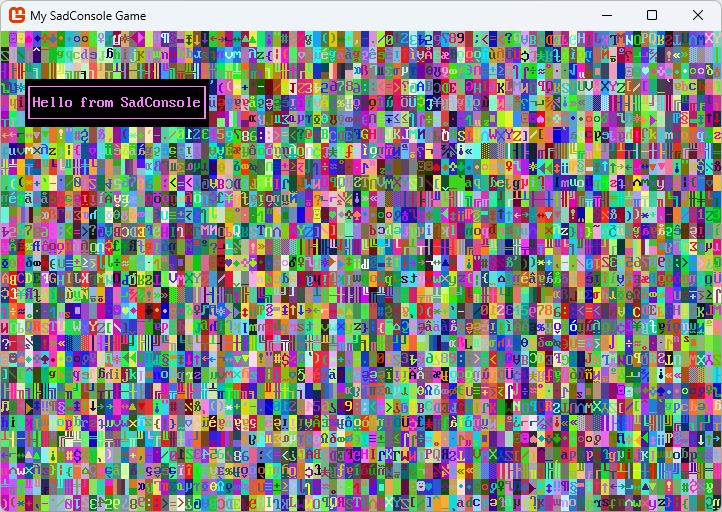
ShapeParameters describes many ways to create the box. While the ShapeParameters.CreateBorder method used a ColoredGlyph to set the foreground, background, and symbol used to draw the whole border, ShapeParameters.CreateStyledBox instead uses a connected line style for the symbols used to draw the box. A ColoredGlyph is still used to set the foreground and background of the border. A few line styles exist, and you can create your own. Here are two of the most common:
ICellSurface.ConnectedLineThin: A thin single line.ICellSurface.ConnectedLineThick: A thick double line.
Try the Thick line style to see how it looks.
Circle
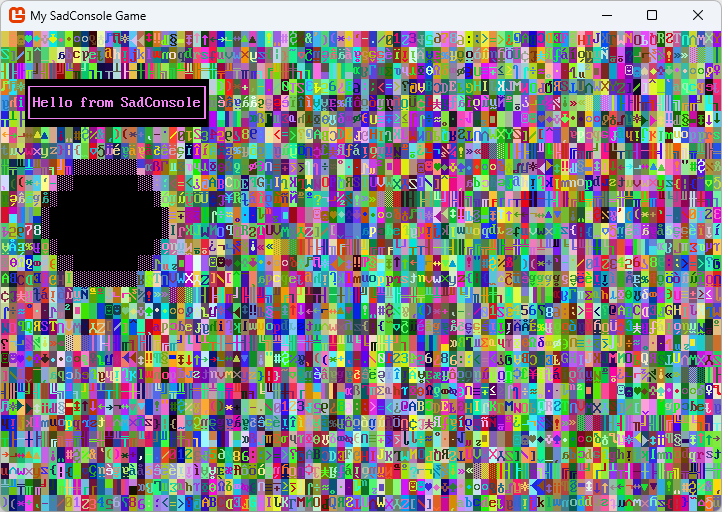
Section titled “Circle”Next, let’s draw a circle, it follows roughly the same pattern:
startingConsole.DrawCircle(new Rectangle(5, 8, 16, 8), ShapeParameters.CreateFilled(new ColoredGlyph(Color.Violet, Color.Black, 176), new ColoredGlyph(Color.White, Color.Black)));The code above is using a black background to fill the box.
Run your game and you’ll see the following screen:
The line shape is the simplest. You don’t worry about fill—simply set the starting point of the line, the ending point, and then what glyph and colors to use when drawing the line.
Before drawing a line, remove the FillWithRandomGarbage code line. All this visual noise makes it hard to see something as small as a line. After removing that code line, add the following line to the end of your code:
startingConsole.DrawLine(new Point(60, 5), new Point(66, 20), '$', Color.AnsiBlue, Color.AnsiBlueBright, Mirror.None);Your Startup method should look like the following:
static void Startup(object? sender, GameHost host){    Console startingConsole = Game.Instance.StartingConsole!;
    startingConsole.Fill(new Rectangle(3, 3, 23, 3), Color.Violet, Color.Black, 0, Mirror.None);    startingConsole.Print(4, 4, "Hello from SadConsole");
    startingConsole.DrawBox(new Rectangle(3, 3, 23, 3), ShapeParameters.CreateStyledBox(ICellSurface.ConnectedLineThin,                                                        new ColoredGlyph(Color.Violet, Color.Black)));
    startingConsole.DrawCircle(new Rectangle(5, 8, 16, 8), ShapeParameters.CreateFilled(new ColoredGlyph(Color.Violet, Color.Black, 176),                                                           new ColoredGlyph(Color.White, Color.Black)));
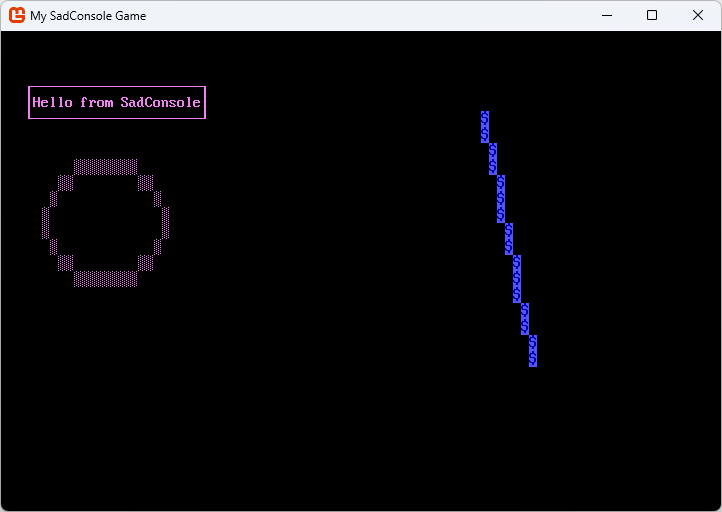
    startingConsole.DrawLine(new Point(60, 5), new Point(66, 20), '$', Color.AnsiBlue, Color.AnsiBlueBright, Mirror.None);}
Run your game and you’ll see the following screen:
Other basics
Section titled “Other basics”A few other methods let you change a console. The Print method works at a specific position and prints a string with a foreground and background color, but you can also work with individual cells. You can adjust the foreground color, the background color, the glyph, or the glyph mirror of any cell in the console, by referring to its X,Y coordinate.
-
Set the foreground color of a cell. A glyph displays in the foreground color of the cell. By changing the foreground color, you change the color of the glyph. If the glyph is set to
0, it’s blank and you won’t see any character symbol or the foreground color for that cell. In this example, this alters the S in SadConsole.// X, Y, ColorstartingConsole.SetForeground(15, 4, Color.DarkGreen); -
Set the background of a cell. This fills the cell with a specific color, while the glyph draws on top of the color. In this example, this alters the C in SadConsole.
// X, Y, ColorstartingConsole.SetBackground(18, 4, Color.DarkCyan); -
Set the glyph of a cell. This changes the character displayed in the cell. The glyph is based on the character index in the font file. In this example, this alters the H in Hello.
// X, Y, Glyph index or characterstartingConsole.SetGlyph(4, 4, '@'); // use '@' or 1, they're the same index glyph -
Change the mirror of a cell. Each cell is initially set to
Nonewhich represents un-mirrored. You can set the mirror toNone,Horizontal, orVertical. In this example, this alters the f in from.// X, Y, Mirror setstartingConsole.SetMirror(10, 4, Mirror.Vertical);
Conclusion
Section titled “Conclusion”You’ve now explored some of the basics of SadConsole. Use Game.Instance.StartingConsole to quickly prototype and experiment. Keep experimenting with these methods. The next part of this series explores the Console cursor and the screen layout system built into SadConsole.