
SadConsole font overview
A “font” in SadConsole displays characters on the screen. The font can be a mix of textual glyphs or graphical tiles. Fonts consist of two parts: the image file and the config file. The image can be in any format that the current host supports, most likely MonoGame. Both the MonoGame and SFML hosts support loading .png images, making that format a safe choice.
Image file
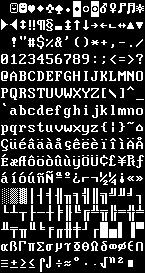
Section titled “Image file”The image file of the font must use a transparent background, not a colored key file. The glyphs in the font graphic should use a pure white color (255, 255, 255) for the foreground. The image file should have two very specific glyphs: a fully transparent glyph, and a fully filled-in glyph.
Here is an example of the standard font graphic included in SadConsole.
Glyph indices
Section titled “Glyph indices”The font breaks down into glyph cells referenced by index. Index 0 represents the top-left cell and counts up moving right, where the next cell is 1. Once the index reaches the end of the row, it moves to the next row and continues counting.
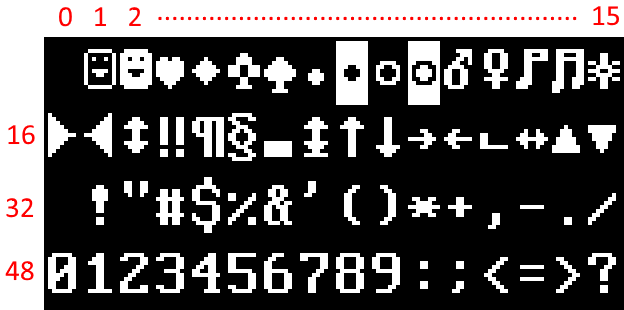
When text is written to a surface or console, all characters land on the surface at the appropriate positions. Surfaces and consoles draw font glyphs by index. All English characters in the font file sit at their matching keyboard keycode index. Character A (code 65) sits at index 65, while character z (code 122) sits at index 122. If you place index 66 at (0,0) on a surface, you’ll see the B character at (0,0).
Font config file
Section titled “Font config file”Each graphical font has a special config file that tells SadConsole how to interpret the image file. This is a JSON-encoded file that ends with the .font extension.
Here’s an example of a font config file. According to this config, each glyph in the image file is 8 pixels wide by 16 pixels tall. A 1-pixel spacing separates every glyph, and the solid-filled glyph index is 219.
{ "$type": "SadConsole.SadFont, SadConsole", "Name": "IBM_8x16", "FilePath": "IBM8x16.png", "GlyphHeight": 16, "GlyphPadding": 1, "GlyphWidth": 8, "SolidGlyphIndex": 219, "Columns": 16, "IsSadExtended": false}Font requirements
Section titled “Font requirements”Keep these requirements in mind for the font image and config files:
-
Index 0 in the image file should be completely transparent.
SadConsole considers index 0 a dead glyph and uses it for optimization. SadConsole draws any glyph besides 0 to the screen, even if it’s completely transparent, but always skips glyph 0.
-
The config file must set the
SolidGlyphIndexproperty. In a Code Page 437 font, which is what SadConsole is built around, this is index 219.The solid white glyph fills the backgrounds of cells.
Font sizes
Section titled “Font sizes”Fonts used by surfaces require a “size” to determine how big each glyph appears. In general, the font has a built-in size that corresponds to the dimensions of the individual glyphs in the image file. The size used with a surface can be any pixel amount, and the renderer stretches the font to that size.
When you need to generate a font size, use the IFont.GetFontSize(Sizes) method, passing in a size value. Size values generate pixel-aligned font sizes. Use the font object you want to generate a font size from. After you create a surface, you can change the font. To ensure you use the appropriate font size, use the surface’s current font to generate a size. For example, the following code creates the surface object first, which uses the default font, then uses the assigned font to generate a font size two times bigger.
SadConsole.ScreenSurface surfaceObj = new(80, 24);
surfaceObj.FontSize = surfaceObj.Font.GetFontSize(IFont.Sizes.Two);
Default font
Section titled “Default font”SadConsole uses the IBM 8x16 Code Page 437 font by default. The default font, set by the GameHost.DefaultFont property, applies automatically to every SadConsole surface object unless you designate a different font when creating the object.
To use a custom font on startup, adjust the game config that starts SadConsole. For more information, see Use your own font as the default font.
using SadConsole.Configuration;
Game.Configuration gameStartup = new Game.Configuration()    // ...config options...    .ConfigureFonts(SetupFont)    ;
Game.Create(gameStartup);Game.Instance.Run();Game.Instance.Dispose();
static void SetupFont(Game.ConfigurationFontLoader loader){    loader.UseCustomFont("fonts\\new.font");}
Changing the default font after SadConsole has started
Section titled “Changing the default font after SadConsole has started”To change the default font after SadConsole starts, set the SadConsole.Game.Instance.DefaultFont property to a different font instance. Changing the default font only affects object created after the change.
Load a font
Section titled “Load a font”The game host loads fonts with the GameHost.LoadFont(string) method. When you load a font, SadConsole registers it with the GameHost.Fonts dictionary, which uses the font name as the key, and then returns the instance.
Fonts can be preloaded with the game config. For more information, see Use a delegate to configure the font options.